
Help centre › Teaching
Teach from a book page or the whiteboard
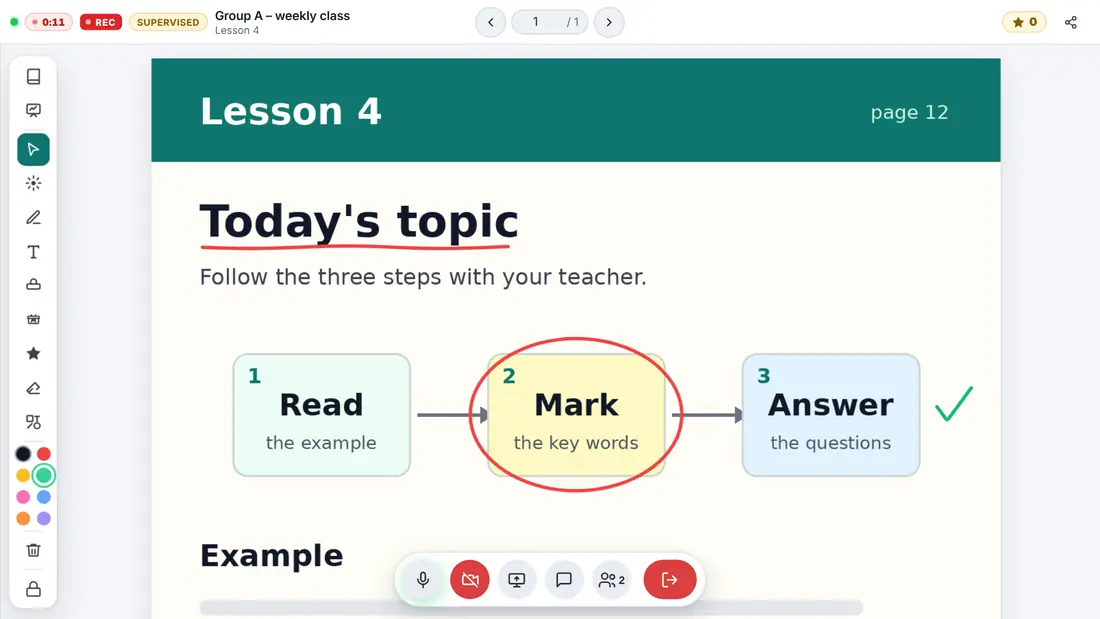
Everyone in the class sees the same page and the same pen marks.
Put your books in the library
- On My classes, go to Teaching library.
- Choose a PDF or a picture (PNG, JPEG or WebP, up to 50 MB) and press Upload.
- In class, press the library button and choose the book.
Students download only the pages you open, in small pieces, so a large book does not slow the voice.
Tools
| Tool | Use it to |
|---|---|
| Pen and highlighter | Write or mark on the page in four colours |
| Pointer | Show where you are reading without leaving a mark |
| Typed text and shapes | Add neat text, lines, boxes and circles |
| Eraser, undo, clear | Remove one mark, the last mark, or all marks on the page |
| Page arrows and zoom | Move through the book and enlarge a part of it |
| Whiteboard | Open a blank page when you have no book |
On a weak connection, open the page from the library instead of sharing your screen. A page needs a small fraction of the data.
Was this not enough? Ask us and we will answer and improve this page.