
Help centre › Getting started
Add teachers and supervisors
Each person gets a username and a password that you choose. No email or phone number is needed.
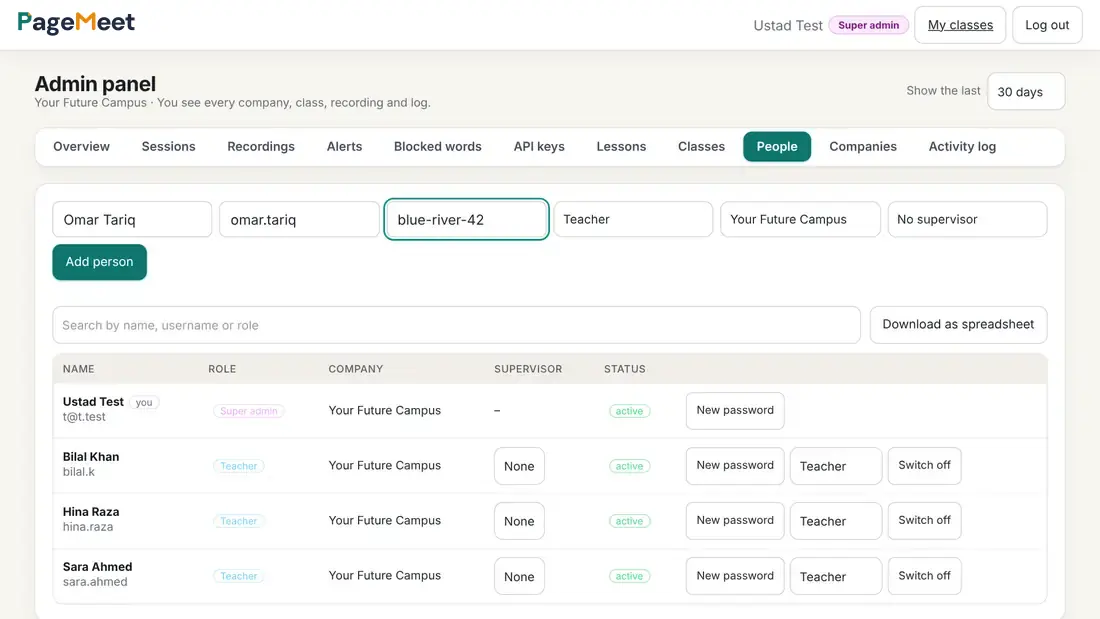
- Open Admin panel, then the People tab.
- Type the person's full name and a username, for example
sara.ahmed. - Type a password, or leave it empty and PageMeet makes one and shows it once.
- Choose the role and press Add person.
- Give the username and password to the person yourself. They can sign in straight away and change the password.
Roles
| Role | Can do |
|---|---|
| Teacher | Create class links, teach, see their own lessons and recordings |
| Supervisor | Everything a teacher can, and watch and review the teachers assigned to them |
| Admin | Everything in the school: people, classes, recordings, alerts, blocked words |
Usernames are shared by every school on PageMeet. If the name you want is taken, add something of your own, for example sara.ahmed.yfc.
To stop someone signing in, press Switch off beside their name. Their lessons and recordings stay.
When someone forgets their password
They press Forgot password? on the sign-in page and type their username. You see "asked for a new password" beside their name in People. Check it is really them, press New password, and type one or let PageMeet make one. They are signed out everywhere and sign in with the new one.
A sign-in code for admins and supervisors
On My classes, under Sign-in code (second step), an admin or supervisor can add an authenticator app. After the password they then type a 6-digit code from their phone, so a stolen password alone cannot open the account. Teachers do not need this.
Was this not enough? Ask us and we will answer and improve this page.